

At the counter
Explain a menu item.
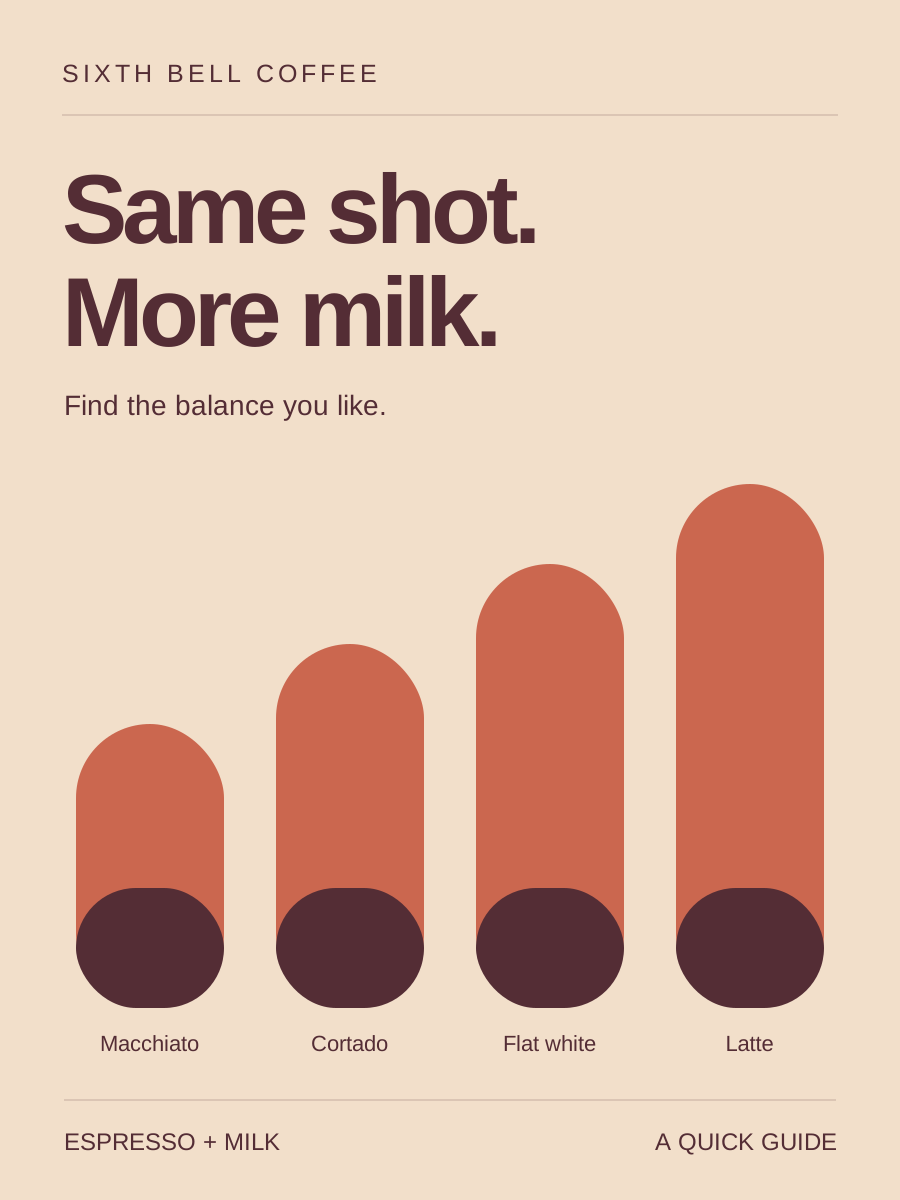
What is the difference between a cortado and a latte? Help customers choose their next order.
See coffee shop posts →Soyla writes posts about your business, creates the images and publishes to Threads after you approve. Choose your posting days and keep the conversation with your customers.
Publishes approved posts. Replies stay with you.
Give Soyla your business details and use familiar customer questions as subjects. You can edit the caption before approving. Here are a few examples.
What is the difference between a cortado and a latte? Help customers choose their next order.
See coffee shop posts →What does a diagnostic check include? Explain what customers can expect from the appointment.
See auto repair posts →Have your opening hours changed? Give customers the details they need before visiting.
See restaurant posts →Soyla shortens longer captions for Threads, preferring a sentence or word boundary and ending with an ellipsis (…). Captions that already fit stay unchanged.
Extra text is not split into replies. Keep your approved caption within the limit when every word needs to appear.
Posting to Facebook or LinkedIn too? Those copies keep the full caption.
Publish a single image or a carousel. Soyla keeps the cover and slides in order, together in one Threads post.
Images retain their original 3:4 shape. Review the set with its caption before it joins your schedule.
Sign in with the Instagram account linked to your Threads profile. This authorizes publishing to Threads only.
To publish in both places, add the Instagram integration separately.
Open Dashboard → Brand → Channels, select Connect beside Threads, and sign in with the Instagram account your Threads profile belongs to. Allow the connection and you are ready to publish approved posts.
No. Add the Instagram integration separately to publish to your grid as well.
Soyla shortens the Threads copy to 500 characters, ending with an ellipsis. It does not split extra text into replies or change the copies sent to other channels.
Yes. A post can carry up to 10 pictures. A carousel arrives as one post, cover first, followed by its slides. Pictures retain Soyla's original 3:4 shape. Soyla does not create or publish video.
No. You handle replies and messages. Soyla does not automatically like, follow or repost other accounts.
Yes. Change the days in Posting settings and set 1 to 3 posting times a day. The schedule applies to your brand's connected channels. You can edit or move a post until its handoff, about 15 minutes before its publishing time.
 InstagramPublish pictures and carousels, sized for your Instagram feed.
 FacebookShare approved updates on your Page, with the full caption and pictures.
 XPublish approved posts with captions shortened to 280 characters.
 LinkedInShare business updates on your personal profile, company Page or both.
 Google Business ProfileAdd business updates to Search and Maps, with one picture per post.
 ClaudeReview pictures, edit captions and approve posts in a Claude conversation.
 ChatGPTTurn a conversation into a post request, then review and approve the result.
 CursorRequest posts from your editor, using the release details you provide.
 Claude CodeReview posts, correct a caption or change a posting date from the terminal.
 CodexAsk Codex to check drafts, edit captions or request a new social post.
Create your brand in Soyla, connect Threads and review your first posts.
Get startedFree preview. Plans from $99/month.